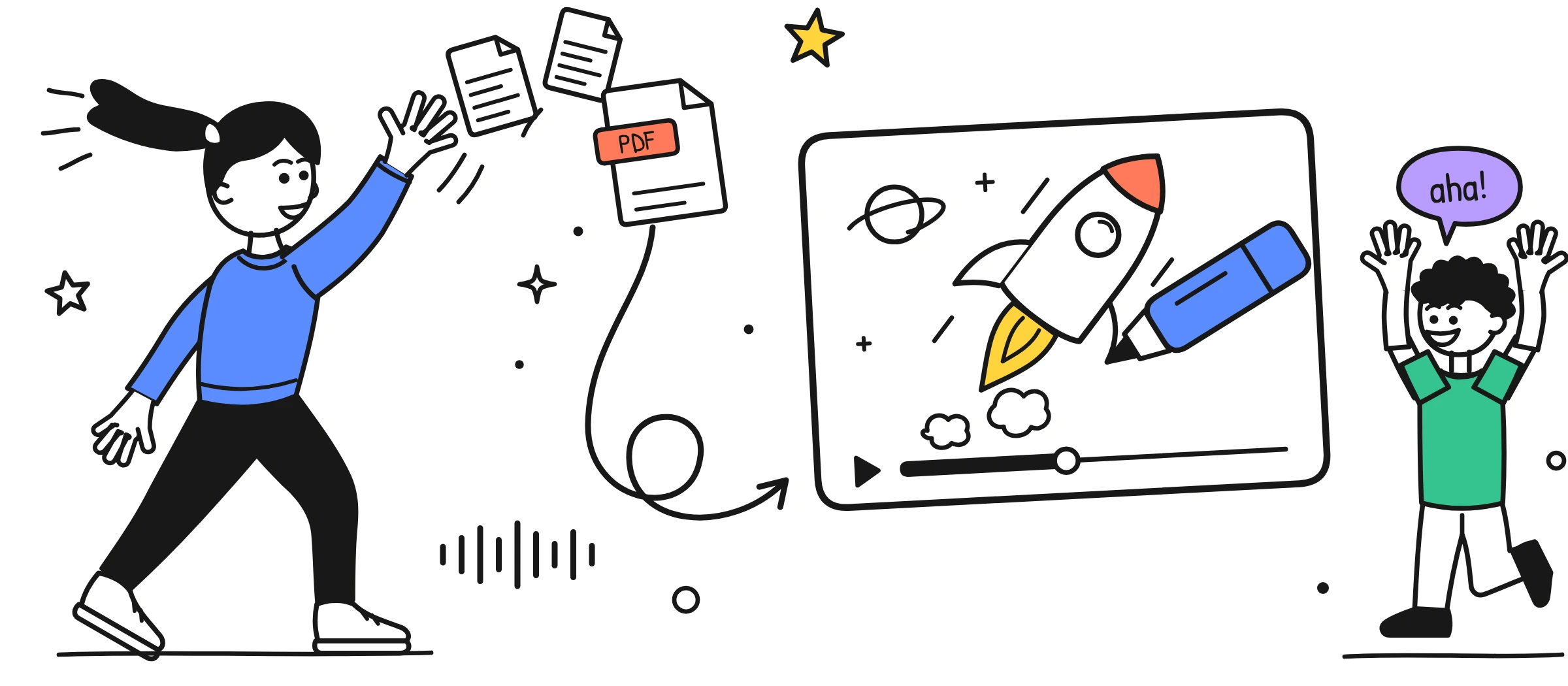
Why turn a PDF into a video?
Because people skim documents and miss the parts that matter. When Nielsen Norman Group tested how people read on the web, 79% of test users always scanned a new page and only 16% read word by word. A long policy PDF gets the same treatment: readers jump to headings, skip the detail and assume they have understood.
A short video changes that. It puts the content in a fixed order, at a fixed pace, with a picture for every point. It works on a phone, it can be captioned and translated, and in a course platform it can report whether someone finished it. The PDF doesn't go away; it becomes the reference, and the video becomes the introduction.
- Policies and procedures: expenses, data protection, health and safety, code of conduct.
- Onboarding guides: "your first week", benefits, IT setup.
- Product and process documentation: release notes, how a service works, a new workflow.
- Lesson material: a chapter, a handout or a revision sheet.
- Research: a paper or report summarised for a non-specialist audience. See research paper summaries.
What makes a PDF video-friendly?
A PDF is video-friendly when it explains rules, steps or ideas in text, for one clear audience. Documents that are mostly tables of figures, diagrams or legal definitions are harder to turn into a short video, and usually need you to decide what the headline message is first.
| Works well | Needs more work |
|---|---|
| Text-based PDF (you can select and copy the words) | Scanned pages or photos of a document |
| Clear headings and sections | One long block of text with no structure |
| Rules, steps, do's and don'ts | Mostly tables, charts or appendices |
| One audience (all staff, managers, new starters) | Several audiences with different rules |
| Current, approved version | A draft that is still changing |
How do you cut a 20-page policy into a 2–3 minute video?
Keep only what the viewer must know or do, in the order they will need it, and leave definitions, history and edge cases in the PDF. At a comfortable 130–150 words per minute, a 2–3 minute video has room for roughly 260–450 words. A 20-page policy can easily run to several thousand words, so you are keeping a small fraction of it. That is the point.
A simple method
- Write the one-sentence goal. "After watching, staff know how to claim travel expenses correctly within 30 days."
- List the must-dos. Scan the policy for "must", "must not", "always", "never", deadlines and limits. These are your candidate scenes.
- Pick three to five. Choose the rules people most often get wrong, or that carry the biggest risk.
- Find one example. A realistic case that shows the rules in action.
- Write the close. One action and where to find the full policy.
- Check the length. Read it aloud. If it runs over, cut a rule rather than rushing.
Worked example: a travel and expenses policy
Imagine a 20-page travel and expenses policy. Here is how its sections might map to a 2-minute video. The numbers are illustrative; use the ones in your own policy.
| Policy section | Keep in the video? | Becomes |
|---|---|---|
| 1. Purpose and scope | One line | Hook: "Booking a work trip? Here's how to get your money back without delays." |
| 2. Definitions | No | Stays in the PDF |
| 3. Booking travel | Yes | Scene: book through the approved travel tool |
| 4. Hotel and meal limits | Yes, the headline limits only | Scene: daily limits shown as two labelled icons |
| 5. Receipts | Yes | Scene: photo of every receipt, no receipt, no refund |
| 6. Submitting a claim | Yes | Scene: submit within 30 days, with the three fields that matter |
| 7. Approval workflow | One line | Scene: your manager approves, finance pays |
| 8. Exceptions and appeals | No | Closing line: "Unusual case? See section 8 of the policy." |
| 9–12. Tax, mileage tables, appendices | No | Stays in the PDF, linked in the closing scene |
The result is about eight to ten scenes: a hook, four or five rules, a short example ("Sam books a train, keeps the photo of the receipt, submits on day 12"), a recap and a closing action. For the scripting itself, see how to write an explainer video script.
How do you turn a PDF into a video with AI?
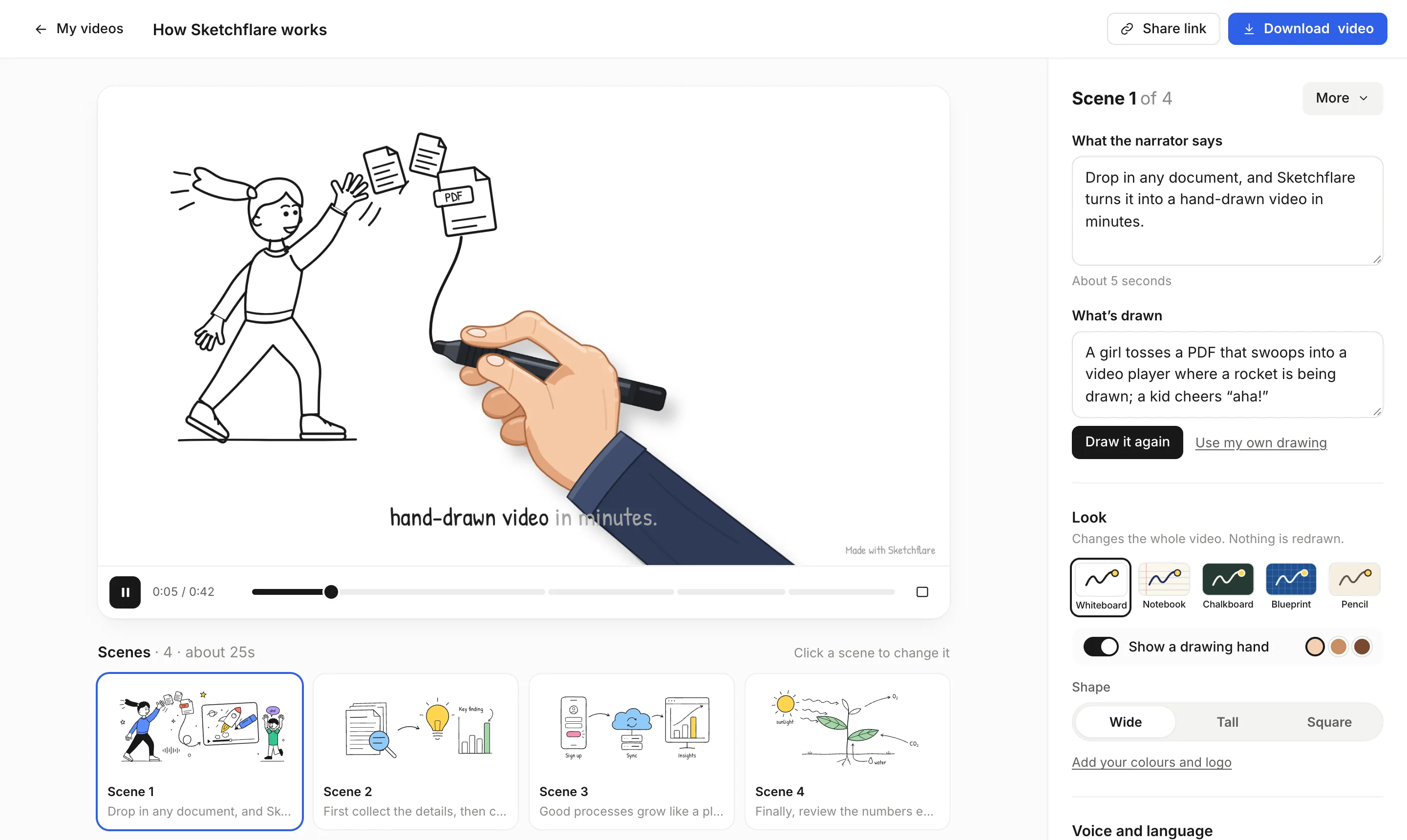
With an AI tool, you upload the PDF, choose the length and style, and the tool drafts the script, drawings and voice-over for you to review. Here is how it works in Sketchflare:
- Upload the document. PDF, TXT or Markdown. If you have already written a script using the method above, choose "Paste my script" instead and every word is kept.
- Choose the length. About 30 seconds, 1, 2, 3, 5 or 10 minutes. For a policy summary, 2 or 3 minutes is a good start.
- Choose the look. Whiteboard (black marker on white) suits most workplace training; Notebook, Chalkboard, Blueprint and Pencil are there if they fit your audience better.
- Choose the voice and language. Six narrators, or "No voice" for captions only. Pick from 16 languages, and set the shape: wide for an LMS or slides, tall for phones, square for feeds.
- Press "Make my video". The AI writes the script split into scenes, draws each scene, records the voice-over in one take and adds word-by-word captions. A typical 1–3 minute video takes a few minutes.
- Review the facts. Read each scene's "What the narrator says" against the PDF. Check every number, deadline and name.
- Edit any scene. Change the narration, change "What's drawn" and press "Draw it again", or upload your own SVG. Add, move or delete scenes.
- Export or share. Download an MP4 with .srt and .vtt subtitles, share a link that viewers can open without an account, or on Pro and Team download a SCORM 1.2 package for your LMS.
If your organisation works in several languages, Pro and Team plans can "Make a copy in…" another of the 16 languages, translating the narration, the drawing notes and the text inside the drawings. See translating training videos.
How do you check the video is accurate?
Treat the AI draft like a first draft from a new colleague: useful, fast, and in need of a careful review by someone who knows the policy. Run through this list before anyone else sees it:
- Every number, limit and deadline matches the current policy.
- Nothing is stated more strongly or more loosely than the policy says ("must" stays "must").
- Names of systems, teams and forms match what staff actually see.
- No rule from an old version of the document has crept in.
- The closing scene tells people where to find the full policy.
- Someone from the policy owner's team (HR, legal, compliance, IT) has signed it off.
How can you turn a PDF into a video without AI?
You can do it by hand in three common ways: narrated slides, a whiteboard animation tool, or a freelance animator. Each starts with the same step: write a short script using the method above.
- Narrated slides. Put each scene on a slide, record narration in PowerPoint, then use File > Export > Create a Video to save an MP4. It is free if you already have PowerPoint, but the result looks like a slide deck, and Microsoft notes that exporting can take a long time for longer presentations.
- A whiteboard animation tool. Tools like VideoScribe let you build each scene from an image library, time it on a timeline and add a voice-over. You get full control, at the cost of building every scene yourself. See how to make a whiteboard animation.
- Hire an animator. Brief a freelancer or studio with your script. You get a bespoke result, with a longer turnaround and a higher cost, and every policy change means another round of edits. See Sketchflare vs hiring an animator.
Which way should you choose?
| Approach | Best when | Watch out for |
|---|---|---|
| AI explainer (e.g. Sketchflare) | You need many videos, updates are frequent, or you need several languages | Review every fact; text-based PDFs work best |
| Narrated slides | You already have a good deck and a quiet room to record | Can feel like a recorded meeting |
| Manual whiteboard tool | You want to place and time every element yourself | Time spent building and re-syncing scenes |
| Freelance animator | A flagship video that will rarely change | Cost and turnaround for each revision |
Where should you publish the video?
Put the video where people already go, and link the full PDF next to it. For required training, upload it to your learning management system so completions are tracked: a SCORM package does this, and our guide to what SCORM is explains how. For everything else, an MP4 on the intranet, a share link in a team chat or an email, or a tall version for phones all work.
Questions
Can AI turn a PDF into a video?
Yes. Tools like Sketchflare read the text of a PDF, write a short script, draw each scene and add a voice-over and captions. You should still review every fact before sharing.
Does it work with scanned PDFs?
Text-based PDFs work best. Scanned pages, images and charts may not be read because the text is extracted from the file, so add key figures as text or paste a summary instead.
How long should a video made from a PDF be?
For a policy or guide, 2–3 minutes covering three to five key rules is a good target. That is about 260–450 words of narration. Leave the detail in the PDF and link to it.
Can I upload the video to my LMS?
Yes. Download an MP4 for any platform that accepts video, or on Sketchflare Pro and Team download a SCORM 1.2 package that reports completion when about 90% of the video has been watched.
Can I make the video in another language?
Yes. Sketchflare can make videos in 16 languages, and on Pro and Team you can make a translated copy of an existing video, including the text inside the drawings.