What a SCORM video is
A SCORM video is a video wrapped in a SCORM package: a .zip file that your learning management system (LMS) knows how to import, play and track. SCORM stands for Sharable Content Object Reference Model. SCORM 1.2 is the most widely adopted version and every major LMS still supports it, which is why Sketchflare exports in 1.2. For background, see what is SCORM.
The difference from uploading a plain MP4 is tracking. An MP4 just plays. A SCORM package tells the LMS that the learner has completed the module, so it shows up in your reports and in any certification or assignment rules you've set.
What Sketchflare's SCORM export does
| Sketchflare SCORM export | |
|---|---|
| Standard | SCORM 1.2 |
| Contents | Your finished video, in a .zip package your LMS can import |
| Tracking | Reports completion when about 90% of the video has been watched |
| Works with | Moodle, TalentLMS, Docebo and most LMSs that accept SCORM 1.2 |
| Plans | Pro and Team |
| Not included | Quizzes, branching or scoring. Add assessments in your LMS if you need them |
A sample module script
Here is a sample 2 minute module on fire safety, the kind of script Sketchflare might write from a site safety procedure. The details are an example; your video uses your own procedure.
Scene 1. Says This two-minute module covers what to do if the fire alarm sounds. It's short, and it matters.
Drawn An office floor plan with a bell icon and a small flame in one corner.
Scene 2. Says When you hear the alarm, stop what you're doing. Don't finish the email or collect your things.
Drawn A laptop with an unfinished email and a hand stepping away from it.
Scene 3. Says Leave by the nearest exit. Follow the green signs, and never use the lifts.
Drawn A green exit sign with a running figure, and a lift door with a cross over it.
Scene 4. Says Go to the assembly point in the car park and find your fire warden.
Drawn A car park with a flag labelled Assembly point and a person in a high-visibility vest.
Scene 5. Says Wait until the warden says it's safe. Only then go back inside.
Drawn The warden giving a thumbs up, with an arrow pointing back to the building.
Scene 6. Says That's it. If you spot a blocked exit or a faulty alarm, report it to facilities straight away.
Drawn A checklist with ticks next to Exits clear and Alarm working.
How to make a SCORM video for your LMS
- Start from your material. Upload the procedure or course notes (PDF, TXT or Markdown; text-based PDFs work best), type a topic, or paste a finished script with “Paste my script”.
- Pick the options. Choose the look (Whiteboard, Notebook, Chalkboard, Blueprint or Pencil), one of six narrators or no voice, a length from about 30 seconds to 10 minutes, and the language. For an LMS, Wide 16:9 is usually the right shape.
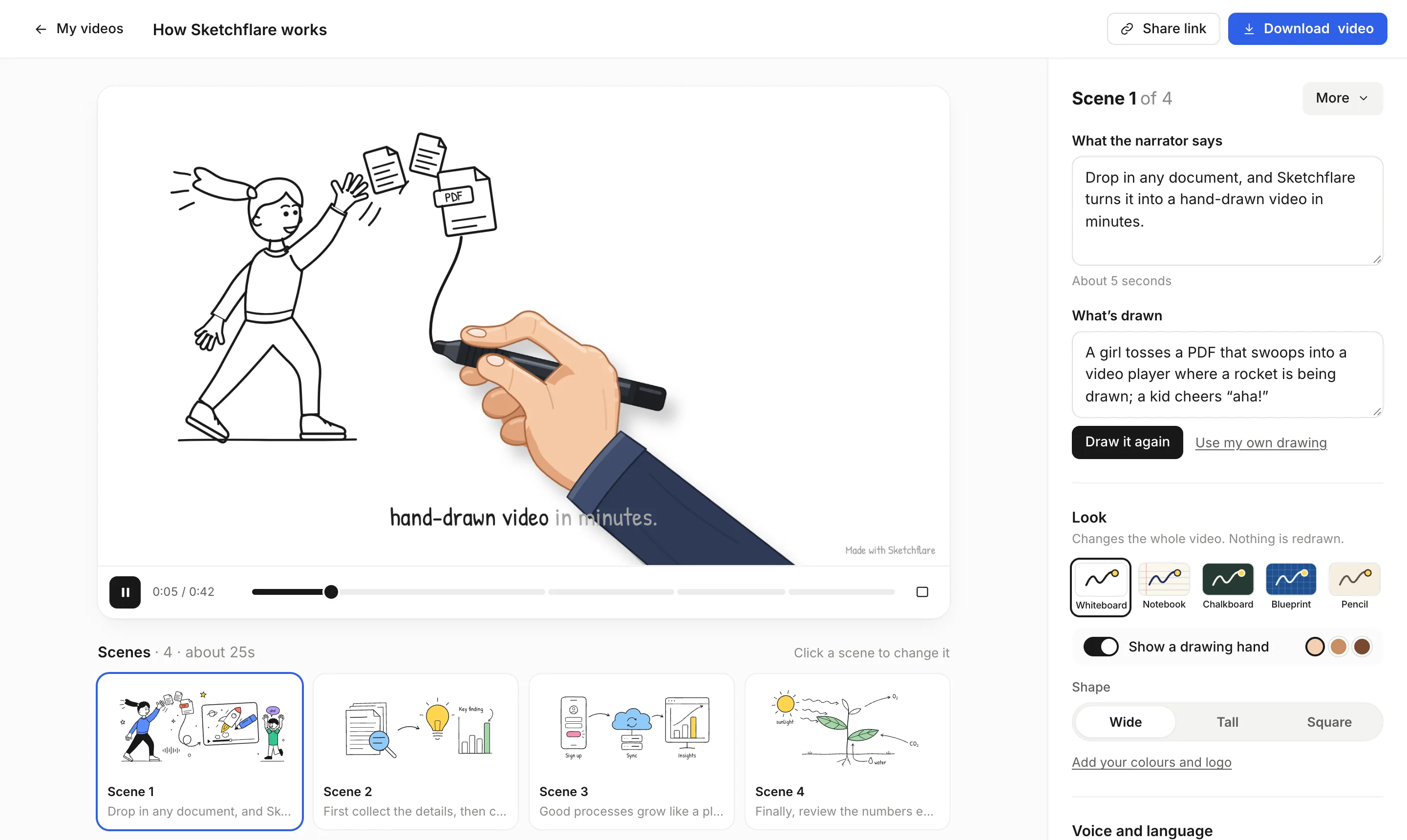
- Press “Make my video” and review. Check each scene's narration and drawing. Edit the words, change “What's drawn” and press “Draw it again”, upload your own SVG, or add, move and delete scenes.
- Download the SCORM 1.2 package. On Pro or Team, choose SCORM from the download options. You can also download the MP4 and .srt or .vtt subtitles if you need them elsewhere.
- Upload it to your LMS. Add a new SCORM course or activity and upload the .zip. The exact menu names differ between platforms.
- Test with a test learner. Enrol a test account, watch the video past 90% and check that the LMS shows it as complete before you assign it to everyone.
The help page download, share and SCORM covers each download option in detail.
What to check before you assign it
- Accuracy. Compare numbers, steps and contacts in the narration with your source document.
- Length. Shorter modules are easier to finish. Our guide on how long a training video should be has suggestions.
- Captions. Every video comes with word-by-word captions, and you can download .vtt and .srt files too. Captions for prerecorded video are a Level A success criterion in WCAG 2.2.
- Completion rules. Decide whether completion of the video is enough, or whether you'll add a quiz in your LMS.
- Branding. On Pro and Team, set your marker colour, accent colours and logo in the brand kit before you export.
Which plan you need
| Plan | Price (as of October 2026) | SCORM |
|---|---|---|
| Free | $0 | No SCORM. Try the editor and download a 720p MP4 with a small mark |
| Pro | $49 a month | Yes. 60 video minutes, Full HD, no mark, brand kit, translations |
| Team | $99 per person a month | Yes. 240 video minutes per person, everything in Pro, priority support |
If SCORM is the reason you're here, you need Pro or Team. Pro suits one person building courses; Team suits L&D teams producing a lot of content, with minutes billed per person. See pricing.
Questions
Can I convert an MP4 into a SCORM package with Sketchflare?
No. Sketchflare exports SCORM for videos made in Sketchflare. You make the video from a document, topic or script, then download it as a SCORM 1.2 package.
Which LMSs does the SCORM export work with?
It is a standard SCORM 1.2 package, so it works with Moodle, TalentLMS, Docebo and most LMSs that accept SCORM 1.2. Test it with a test learner before rolling it out.
When does the LMS mark the video as complete?
When the learner has watched about 90% of the video. The package does not report scores, as there are no quizzes inside it.
Is SCORM export available on the Free plan?
No. SCORM 1.2 export is included on Pro ($49 a month) and Team ($99 per person a month), as of October 2026.
Why SCORM 1.2 and not SCORM 2004 or xAPI?
SCORM 1.2 is the most widely supported version across learning platforms, so one package works almost everywhere. Sketchflare currently exports SCORM 1.2 only.